> For the complete documentation index, see [llms.txt](https://learn.mechanic.dev/llms.txt). Markdown versions of documentation pages are available by appending `.md` to page URLs; this page is available as [Markdown](https://learn.mechanic.dev/app/task-editor.md).
# Task editor
Create, edit, and test Mechanic tasks — configure options in Basic mode or write Liquid code in Advanced mode.
The task editor is where you configure and write Mechanic [tasks](/core/tasks.md). It has two modes: **Basic** for adjusting a task's settings, and **Advanced** for editing code, testing with preview events, and managing runtime behavior.
Switch between modes using the **Advanced/Basic mode** toggle in the page actions menu. You can set your default in [Settings](/app/settings.md).
{% hint style="info" %}
If you're using tasks from the [task library](/resources/task-library.md) and only need to adjust their settings, Basic mode is all you need. Advanced mode is for writing or editing task code.
{% endhint %}
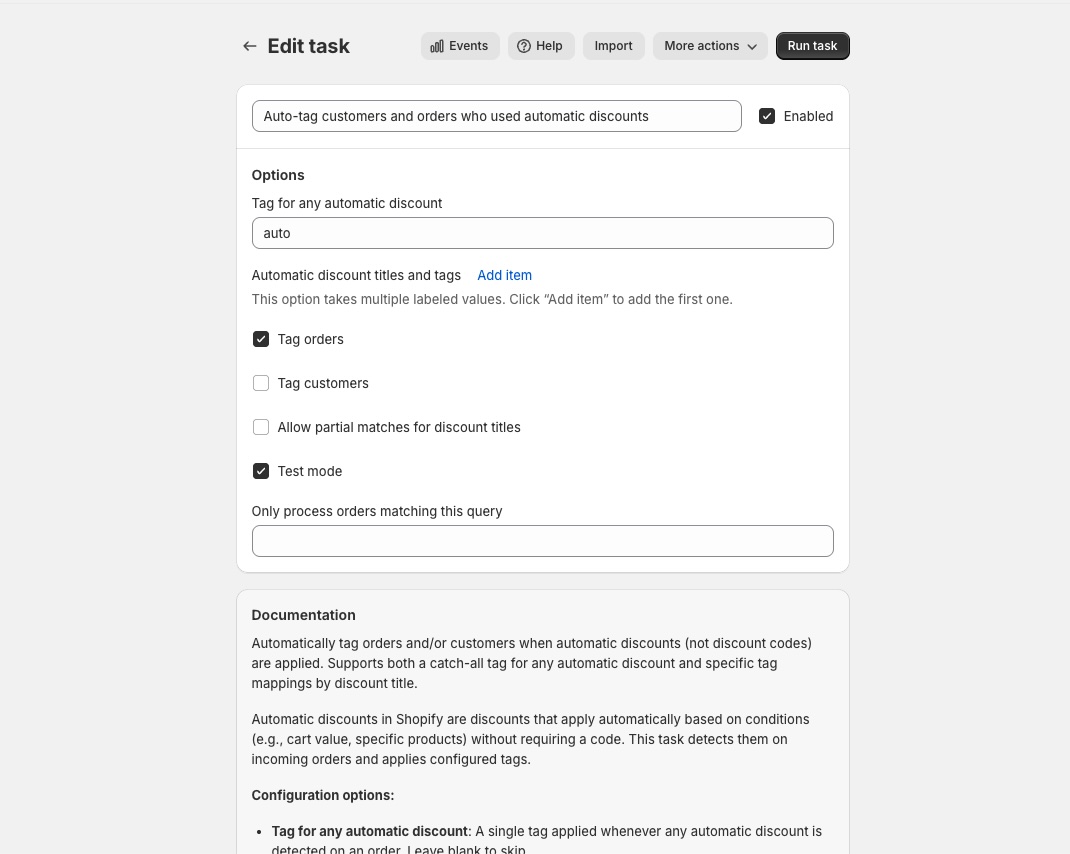
## Basic mode
Basic mode displays the task's settings and documentation, with no code visible. Use it to configure a task's [options](/core/tasks/options.md) — the fields that control how the task behaves (e.g., which tag to apply, which email to send to).
## Advanced mode
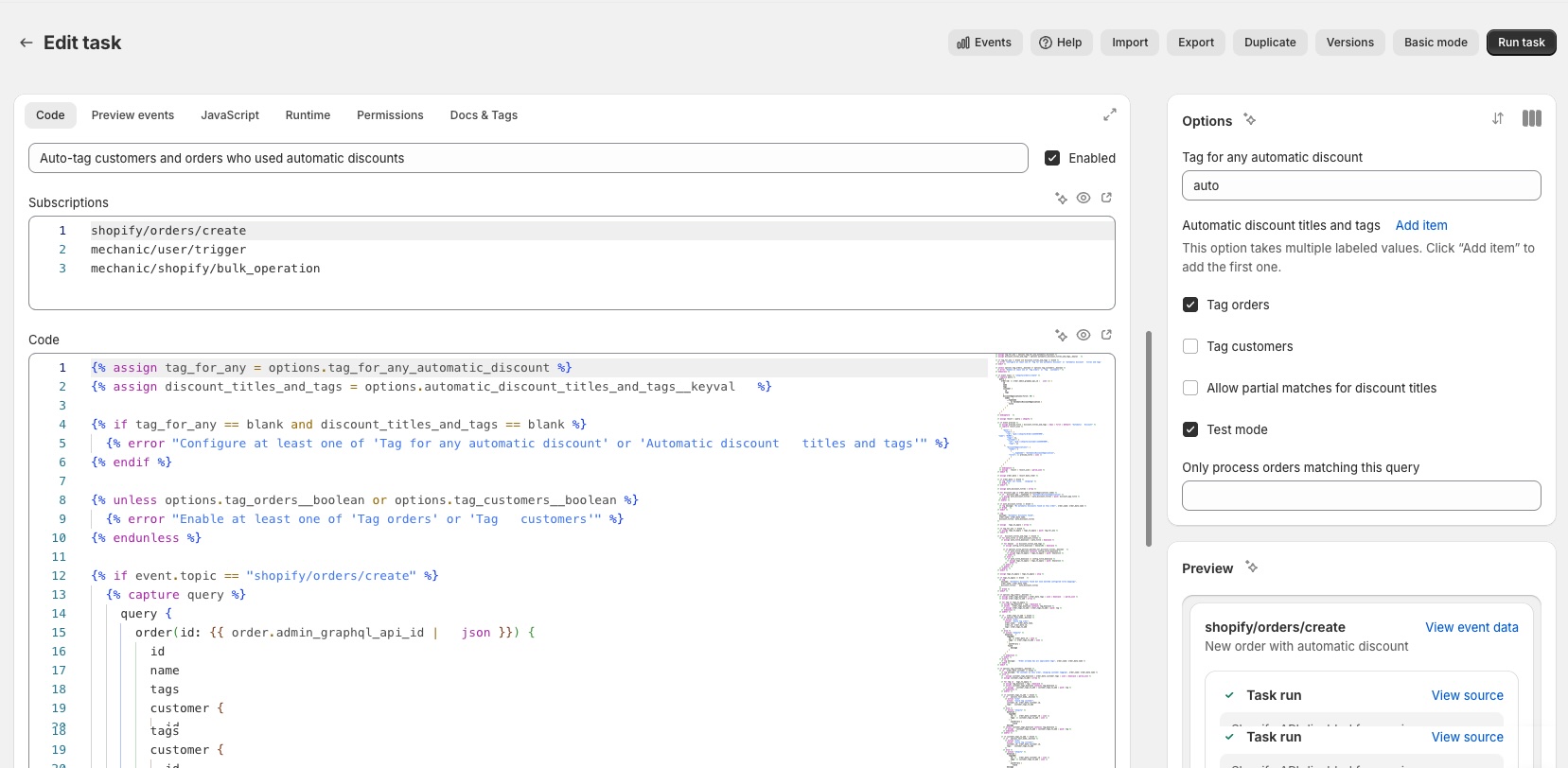
Advanced mode provides a tabbed editor with a sidebar showing **Options** and a live **Preview** of the actions your task will perform based on your code.
### Code tab
The main editing surface:
* **Subscriptions** — the Shopify events (like order creation or fulfillment) that trigger this task, one per line. Supports [offsets](/core/tasks/subscriptions.md) for delays (e.g., `shopify/orders/create+1.hour`).
* **Code** — the task's [Liquid code](/platform/liquid.md), written in Mechanic's implementation of the Liquid language (related to but distinct from Shopify theme Liquid)
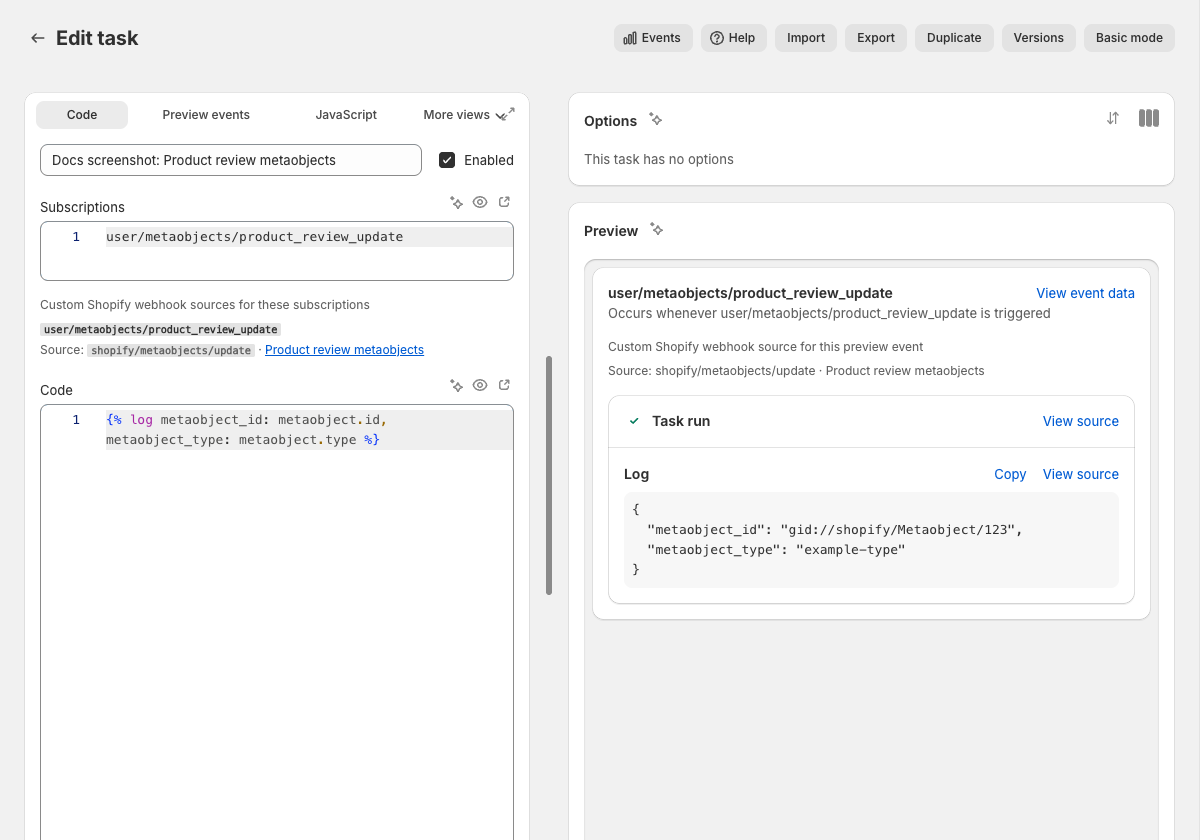
When a subscription uses a `user/...` topic backed by a [custom Shopify webhook](/platform/shopify/custom-webhooks.md), the task editor shows the matching webhook source and status. It also warns when a `user/...` subscription looks like it should be backed by a custom Shopify webhook but no enabled source is receiving, and when a native `shopify/...` subscription would conflict with an enabled unfiltered custom Shopify webhook.
### Preview events tab
Create test events to see how your task will behave without affecting real data. You can define multiple preview events per topic to test different scenarios, label them with descriptions, and use [stub data](/core/tasks/previews/stub-data.md) (hardcoded sample data that stands in for real API responses) to mock Shopify API responses. The task [preview](/core/tasks/previews.md) updates automatically as you edit, showing generated actions, errors, and any Shopify permission changes.
### JavaScript tab
Add JavaScript that runs in your customers' browser on the online storefront or order status page. Most tasks don't use this — it's for tasks that need client-side interactivity.
### Runtime tab
* **Shopify Admin API version** — which [API version](/core/shopify/api-versions.md) the task uses
* **Perform action runs in sequence** — by default, Mechanic runs all of a task's actions in parallel. Enable this to run them one at a time, which is useful when later actions depend on earlier ones.
* **Halt the sequence when one fails** — stop processing remaining actions if one fails
### Permissions tab
A read-only view of the Shopify API [permissions](/core/tasks/permissions.md) your task requires. Mechanic scans your code and preview events to determine these automatically — you don't need to manage them manually.
### Docs & Tags tab
Add tags to organize your task, and write Markdown documentation with a live preview.
## Page actions
The actions menu in the page header includes:
* **Events** — view all events processed by this task
* **Help** — open task-specific help and support options
* **Import** — paste a JSON task export. Learn more in [Import and export](/core/tasks/import-and-export.md).
* **Export** — copy this task as JSON. Learn more in [Import and export](/core/tasks/import-and-export.md).
* **Duplicate** — create a copy of the task
* **Versions** — view and restore previous versions of the task
* **Advanced mode / Basic mode** — switch between editor modes
## Running a task
If your task subscribes to `mechanic/user/trigger`, `mechanic/user/text`, or `mechanic/user/form`, a **Run task** button appears in the page header.
* **Trigger tasks** run immediately with one click
* **Text tasks** prompt for a text input
* **Form tasks** show a form with fields defined by the task's [user form](/core/tasks/user-form.md) options
---
# Agent Instructions
This documentation is published with GitBook. GitBook is the documentation platform designed so that both humans and AI agents can read, navigate, and reason over technical content effectively. Learn more at gitbook.com.
## Querying This Documentation
If you need additional information that is not directly available in this page, you can query the documentation by asking a question.
Perform an HTTP GET request on the following URL with the `ask` and `goal` query parameters:
```
GET https://learn.mechanic.dev/app/task-editor.md?ask=&goal=
```
`ask` is the immediate question: it should be specific, self-contained, and written in natural language.
`goal` is what the user is ultimately trying to achieve, the reason they need the answer. Sharing it helps GitBook give you a better, more relevant answer. A goal is most helpful when it describes the outcome the user wants rather than restating the question. For example, with `ask=how do I create an API token`, a goal like `automate deployments from our CI pipeline` lets GitBook tailor the answer to that use case.
The response will contain a direct answer to the question and relevant excerpts and sources from the documentation.
Use this mechanism when the answer is not explicitly present in the current page, you need clarification or additional context, or you want to retrieve related documentation sections.