> For the complete documentation index, see [llms.txt](https://learn.mechanic.dev/llms.txt). Markdown versions of documentation pages are available by appending `.md` to page URLs; this page is available as [Markdown](https://learn.mechanic.dev/app/events.md).
# Events
Monitor Shopify webhook events, filter by topic or error, and investigate task run results in the Mechanic Events page.
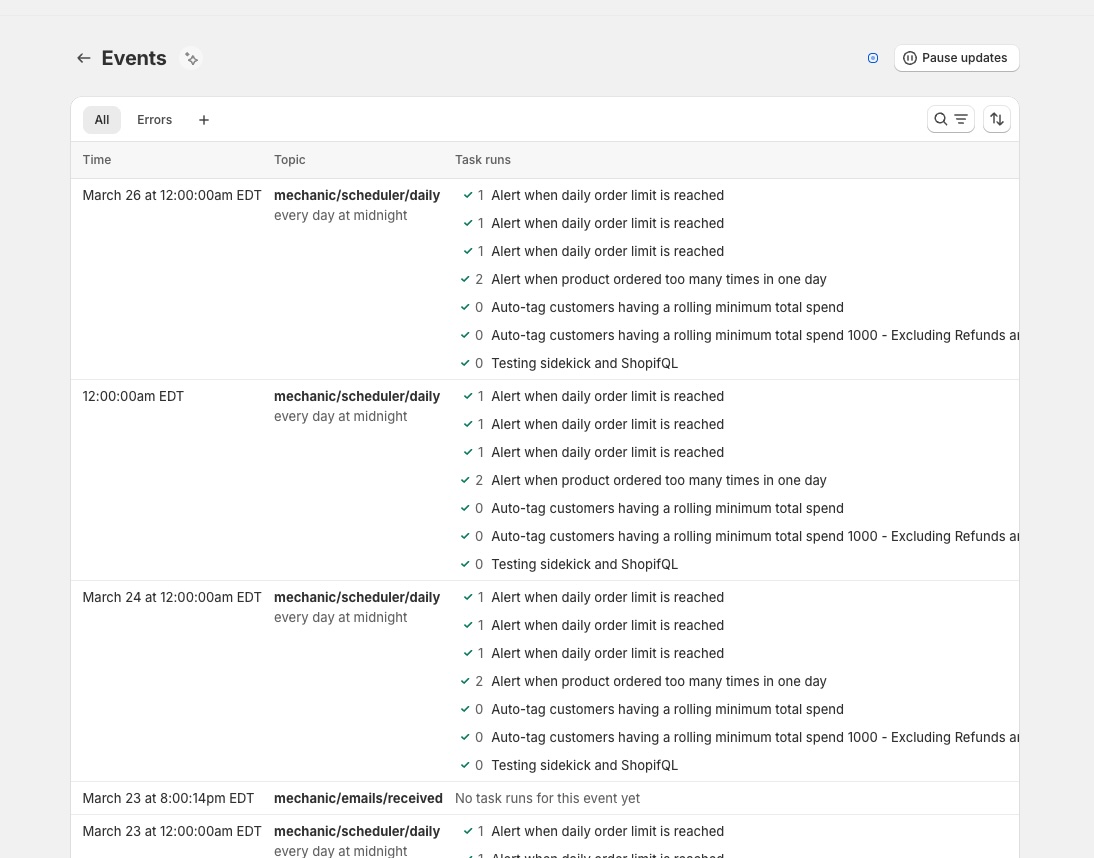
The Events screen shows a live stream of [events](/core/events.md) — the triggers that cause your tasks to run. Use it to monitor your automations, and to investigate when a task isn't behaving as expected.
## Event list
Events are displayed in reverse chronological order, showing the time, topic, and task results for each event. The list updates in real time as new events arrive.
### Filtering
Use the **Filters** button to narrow results by search text, date range, error type, event topic, or specific task. The **Errors** tab provides quick access to all events where something went wrong.
Save filter combinations as **custom views** to quickly return to filtered lists you use often.
### Storefront form submissions
For a [storefront form](/app/forms.md), open **Submission settings → View events for this webhook topic**. The list can include other forms or integrations that share the same topic. Open an event to inspect its answers and the resulting task and action runs. The form's confirmation means the webhook received the submission; check action results to confirm an email or storage task finished successfully.
## Event detail
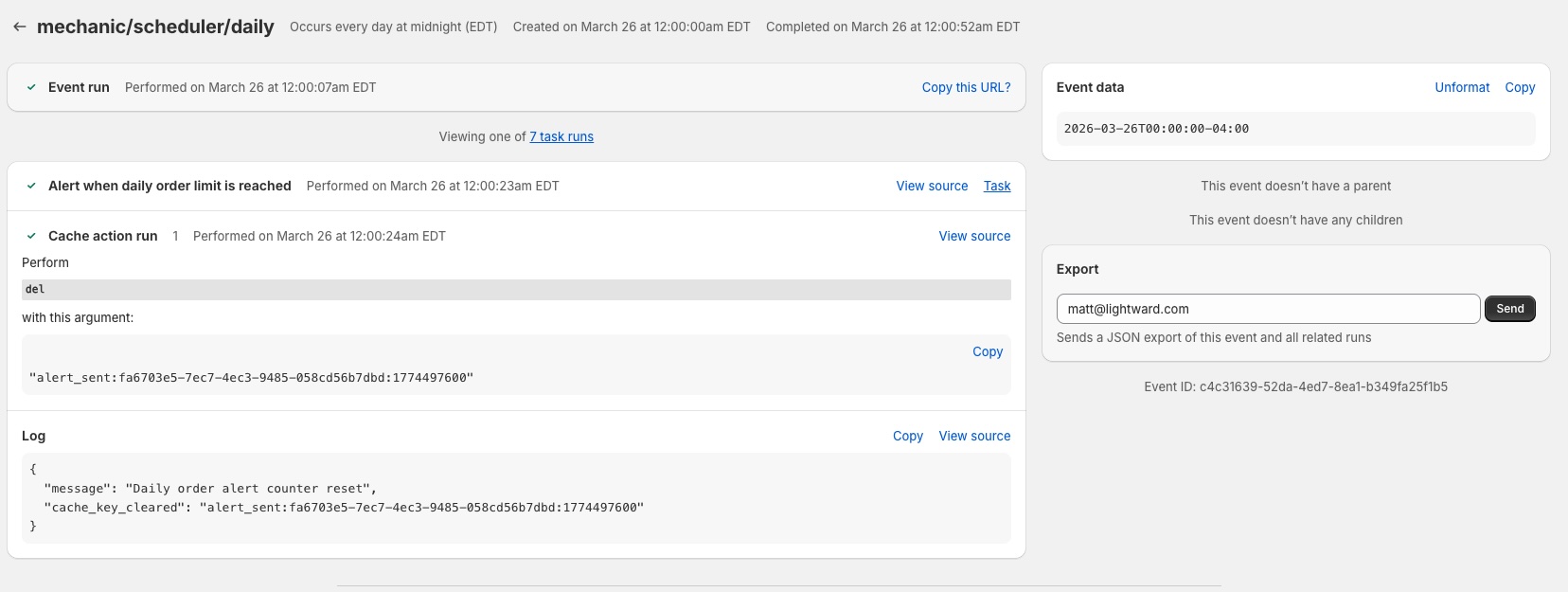
Click any event to see exactly what happened: which tasks ran in response, what actions they performed, any errors encountered, and the raw event data (JSON).
If a task failed due to a temporary issue (like a network error), you can **retry** the event to run it again. Use **cancel** to stop a queued event that hasn't started processing yet. You can also **export** the event and all related data as JSON via email — useful for debugging with support or archiving.
---
# Agent Instructions
This documentation is published with GitBook. GitBook is the documentation platform designed so that both humans and AI agents can read, navigate, and reason over technical content effectively. Learn more at gitbook.com.
## Querying This Documentation
If you need additional information that is not directly available in this page, you can query the documentation by asking a question.
Perform an HTTP GET request on the following URL with the `ask` and `goal` query parameters:
```
GET https://learn.mechanic.dev/app/events.md?ask=&goal=
```
`ask` is the immediate question: it should be specific, self-contained, and written in natural language.
`goal` is what the user is ultimately trying to achieve, the reason they need the answer. Sharing it helps GitBook give you a better, more relevant answer. A goal is most helpful when it describes the outcome the user wants rather than restating the question. For example, with `ask=how do I create an API token`, a goal like `automate deployments from our CI pipeline` lets GitBook tailor the answer to that use case.
The response will contain a direct answer to the question and relevant excerpts and sources from the documentation.
Use this mechanism when the answer is not explicitly present in the current page, you need clarification or additional context, or you want to retrieve related documentation sections.